

Updates for one year, unlimited sites, auto updates, and regular updates.
$3.99
 BookmarkBookmarked
Store Credit lets you pay affiliate commissions as store credit instead of cash. Affiliates build up a balance from their referrals and can spend it on purchases from your WooCommerce or Easy Digital Downloads store. The add-on is built for AffiliateWP, so AffiliateWP 2.6 or newer must be active first. It is a practical option for programs that would rather keep commission spending inside the business, because the credit can only be used on the store that issued it.
Store Credit is an extension of AffiliateWP, so the core plugin must be version 2.6 or newer before the add-on can run. WordPress 5.2 or newer and PHP 7.4 or newer are also required. The store side depends on the platform you use. WooCommerce needs its core plugin alongside AffiliateWP, and WooCommerce Subscriptions is also supported. Easy Digital Downloads needs the EDD Wallet add-on in addition to EDD itself, and EDD Recurring Payments is supported as well. If you want affiliates to earn credit on renewal payments, the separate Recurring Referrals add-on is also required.
After AffiliateWP is in place, switch the feature on from the payouts area of AffiliateWP’s settings. Go to AffiliateWP, then Settings, then Payouts, and find the Store Credit card. Turn on its toggle, press Configure to open its options, choose what you need, and click Save Changes. The only option named in the configuration panel applies store credit to WooCommerce Subscriptions renewal orders, and it appears only when WooCommerce Subscriptions is in use.
Payout behavior is controlled on the same Payouts tab. The Default Payout Method dropdown can be set to Store Credit, which makes it the program-wide default for affiliates who have no method of their own. Affiliates who already have a method, whether one you assigned or one they chose, keep it. A separate toggle, Allow affiliates to choose their payout method, adds a Payout Method dropdown to the Settings tab of each affiliate’s dashboard, where they can pick Store Credit. You can also set a method for an individual affiliate from that affiliate’s record in AffiliateWP.
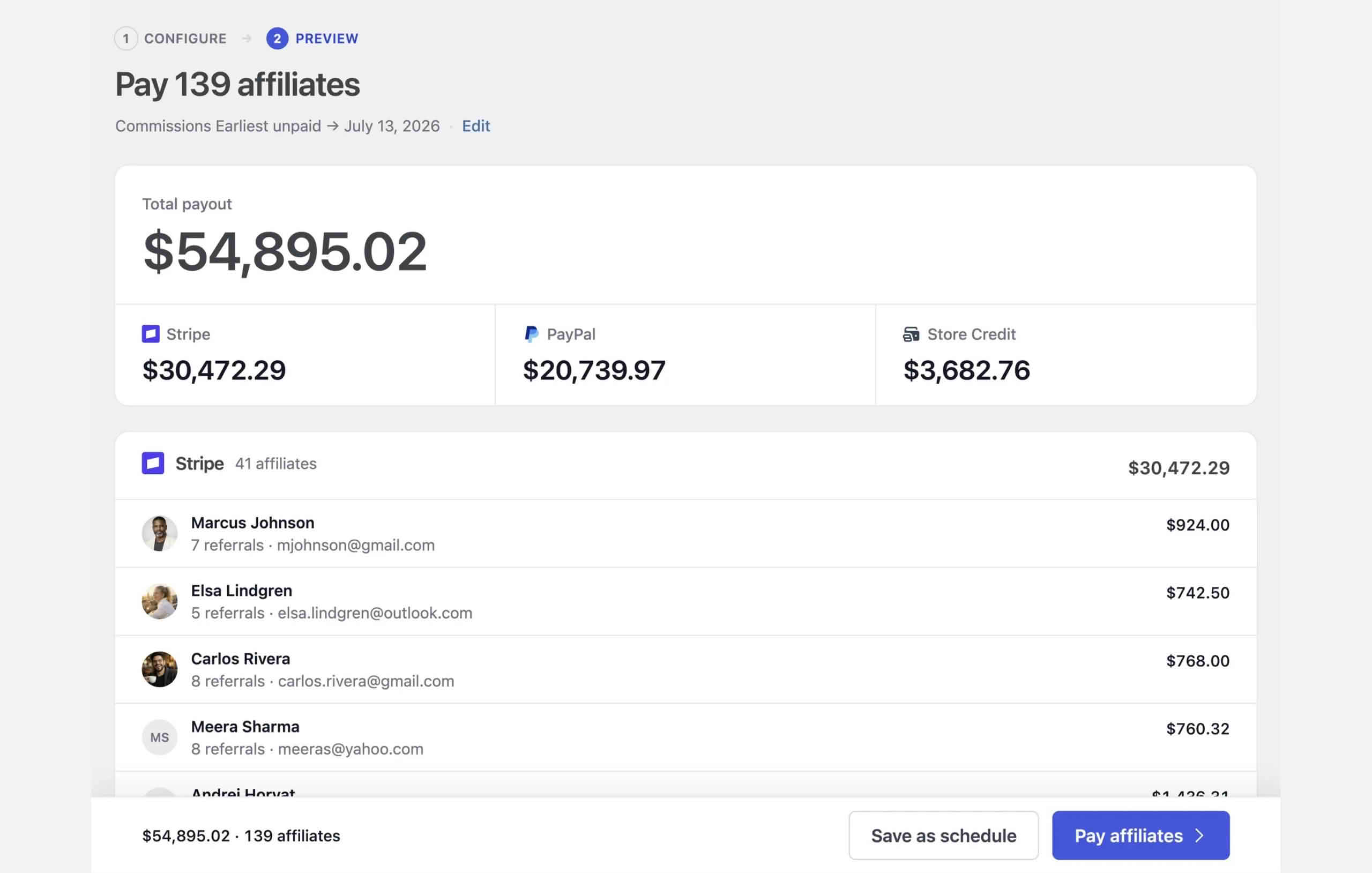
Store credit is added to an affiliate’s balance when a referral is paid. It follows the payment step rather than the moment of sale. You can pay referrals one at a time from the Referrals screen by finding an unpaid referral, hovering over its row, and clicking Pay. The balance updates on its own. Alternatively, you can pay affiliates in bulk through a payout batch. For affiliates whose payout method is Store Credit, the batch applies their credit automatically. The full steps for running a batch are covered in AffiliateWP’s separate payout guide.
Credit follows referral amounts. Editing a referral’s amount updates the store credit as well, and marking a referral unpaid again removes its amount from the balance. A referral indicator flags the referrals set to pay out as store credit, so you can see at a glance which entries will become credit.
On WooCommerce, a shopper who has available credit sees a checkout notice asking whether they want to apply it. If they say yes, the plugin generates a single-use coupon for whichever is smaller, their credit or the order total, and applies it automatically. Once the checkout succeeds, the coupon’s value is deducted from the balance. For example, if an order totals 100 and the affiliate holds 50 in credit, the coupon is worth 50.
On Easy Digital Downloads, store credit appears among the payment choices at checkout, but only when the EDD Wallet extension is enabled. The affiliate selects it the same way they would any other payment option. For subscription products, the renewal option lets credit cover renewal orders in WooCommerce Subscriptions. Credit can be used only by the affiliate it was issued to, and any unused balance stays available until it is spent.
Affiliates can check their position in their Affiliate Area. The Settings tab shows the current balance, and the Statistics tab includes an Available Store Credit section. A shortcode, [affiliate_store_credit], is also available for displaying credit information on a page, although its output is not described in the documentation.
Each affiliate’s balance is managed on the Edit affiliate screen. Open AffiliateWP, go to Affiliates, click the affiliate’s name, and scroll to the Store Credit section. That section shows the current balance along with a history of changes. Use the Adjust button to raise or lower the balance. To increase it, choose Increase Store Credit, enter an amount, check the preview of the new balance, and click Save Adjustment. To decrease it, choose Decrease Store Credit, enter the amount to remove, and save. The Affiliates list also includes a Store Credit column so you can compare balances at a glance.
Administrators can also restrict store credit payouts to chosen affiliates, and an affiliate-profile option lets individual affiliates opt in to store credit payouts. These controls make it possible to run store credit for a select group before opening it to everyone.
Unused store credit does not expire on its own. It stays in the balance until the affiliate spends it, and it moves up or down as referrals are paid or unpaid, as orders redeem it, and as administrators make manual adjustments. Because outstanding balances build up over time, it is sensible to review them regularly and keep an eye on the total owed to affiliates.
The plugin’s directory listing states that it has not been tested with the three most recent major WordPress releases, and it warns that newer WordPress versions could cause problems. Before any WordPress upgrade, test checkout on a staging copy using an affiliate account that holds a balance, so you can see the coupon and credit behavior with your own theme and plugins in place.
Paying commission as store credit suits programs that want affiliate earnings to return to the store. Because the balance can only be spent on your own site, commission stays tied to the business rather than leaving it as cash. That can suit a store that sells products its affiliates already want, or a membership program in which affiliates are customers as well as promoters. If affiliates rarely shop on the store, balances will build up, so consider how you will explain the option to them before launch.
Credit is added whenever a referral is paid, and bulk payouts are one way to settle many referrals at once. A payout batch applies credit automatically for affiliates whose payout method is Store Credit, so it pays to set that method for each affiliate before you run a batch rather than afterwards. Check the Store Credit column on the Affiliates list once the batch finishes, so you can confirm the balances look right before affiliates start spending. Individual payments remain available for one-off cases, such as a single referral that needs attention.
If a referral needs to be reversed, marking it unpaid again removes its amount from the affiliate’s balance, which is the documented route for taking credit back. Editing a referral’s amount also updates the credit. When a balance needs correcting without touching a referral, use the Adjust button on the Edit affiliate screen, choose Decrease Store Credit, and save the adjustment. The Store Credit section keeps a history of changes showing the date, the kind of adjustment, and the amount, which gives you a clear record afterwards.
Affiliates get the most from store credit when they understand its rules from the start. Explain that credit can only be used by the affiliate it was issued to, that unused credit stays available until it is spent, and that WooCommerce checkout applies a coupon worth the smaller of the credit or the order total. Let them know whether renewal credit applies to their subscriptions, and whether Easy Digital Downloads checkout offers the option on your site. Clear expectations reduce confusion when a balance cannot be used somewhere an affiliate hoped it could.
Renewal support is a separate part of the setup. When WooCommerce Subscriptions is in use, the Apply Store Credit to WooCommerce Subscriptions Renewal Orders option lets an affiliate with an active subscription spend credit on renewals. Earning credit on renewals requires the Recurring Referrals add-on, which applies to both WooCommerce Subscriptions and EDD Recurring Payments. Without that add-on, renewal payments will not produce new credit, so install it before you promise affiliates anything about recurring commissions.
Developers can modify the coupon data that the WooCommerce integration generates by using the affwp_store_credit_woocommerce_coupon_data filter, which was added in version 2.2. This makes it possible to adjust the generated coupon from a theme or a small custom plugin, without changing the add-on’s own files.


