

Updates for one year, unlimited sites, auto updates, and regular updates.
$3.99
 BookmarkBookmarked
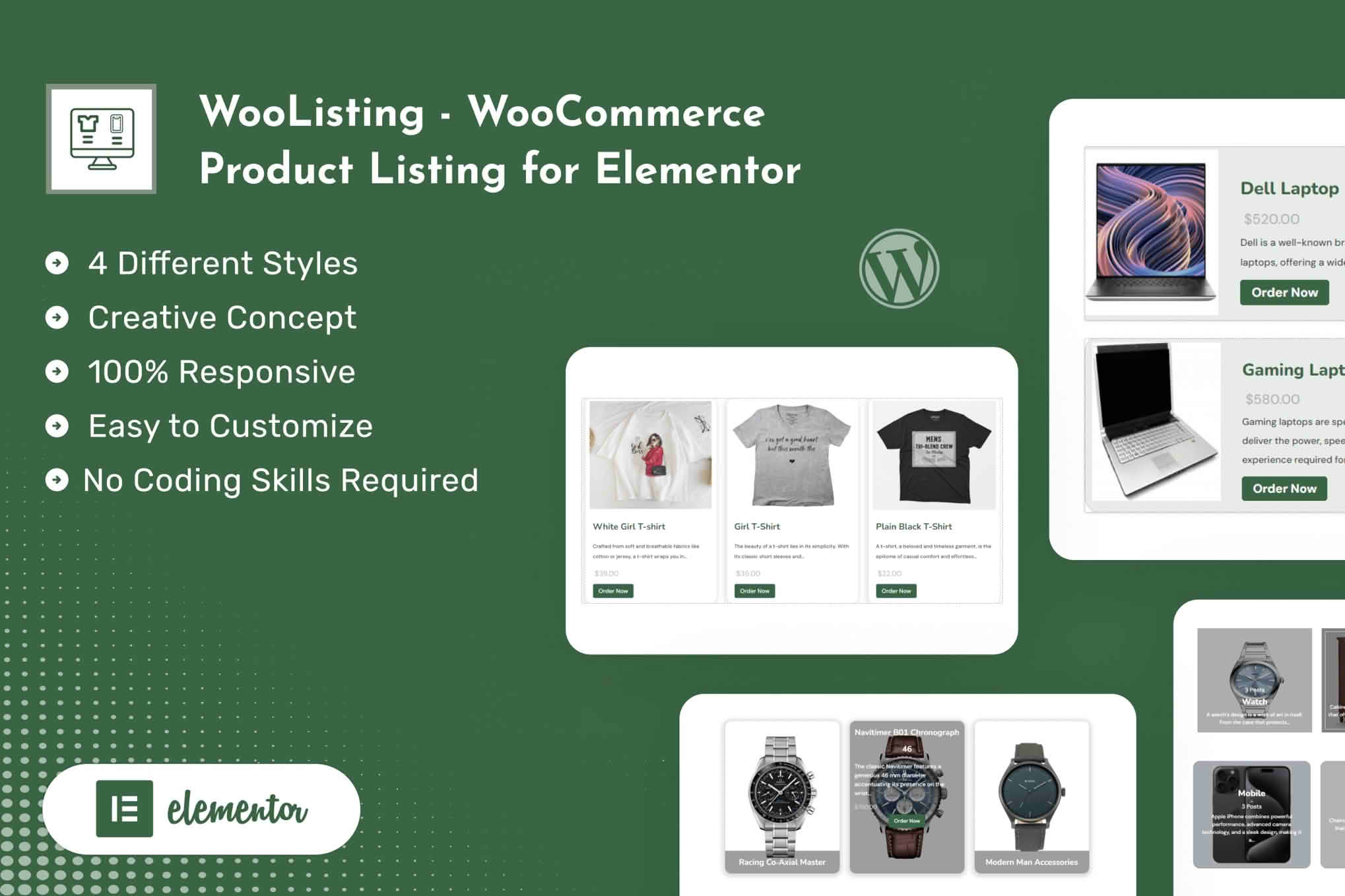
WooCommerce Product Listing for Elementor adds product presentation widgets to the Elementor page builder, so you can show WooCommerce products and product categories in several layout designs on any page built with Elementor. It is aimed at store owners and designers who want a product section on a homepage, a landing page, a category showcase or an inner page, and who prefer to control that presentation inside Elementor’s visual editor. The widgets draw on the WooCommerce catalogue, so the items shown are the ones already set up in your store.
The plugin can present individual products as a collection, and it can present product categories as a set of cards in their own right. Categories can be shown as grid or slider layouts, so a long list of categories can run as a browsable strip or sit in a tidy grid of tiles.
Each product card can be set to show or hide specific parts. Among the elements that can be switched on or off are the product image, the heading, the description text, the rating and the purchase button. A card can therefore be kept deliberately sparse for a brand showcase, or made more informative for a shop-style grid.
Showing individual products suits a section that is meant to promote specific items, such as a seasonal range or a set of bestsellers. Showing categories suits a page that helps visitors choose a direction before they look at individual items. Many sites use both: a category row near the top of a page, followed by a product grid that features the most relevant items from one of those categories.
The plugin includes several distinct designs for product collections. Grid items can receive hover effects, box shadows and border options, which helps the cards fit the visual tone of different pages. The vendor describes the layouts as responsive, and the cards can be checked at each screen size before publishing.
Columns can be set separately for large screens, tablets and phones, so the number of columns on a desktop can differ from the number on a phone. A maximum number of products can also be set for a grid, which stops a long catalogue from dominating a page that carries other content.
Each card can carry a title, a short description, a rating and a purchase button, and the choice of which parts to show should match the job the section has to do. A showcase that introduces a range can drop the rating and keep the description brief. A grid meant to help visitors compare items may benefit from keeping the rating visible, provided the catalogue has enough reviews to make the rating meaningful.
Filtering happens before the products reach the visitor. Products can be excluded by category or by tag, which is useful when certain items should never appear in a particular showcase. The widget can also select products by best-seller status or by top ratings, and featured products can be given priority in the displayed order.
The resulting list can be sorted in ascending or descending order. Because each placement can carry its own filter, the same catalogue can present different selections on different pages.
The plugin is built as a set of Elementor widgets. To place one on a page, drag the widget into the section where it should appear, then choose the content source, the layout design, the column counts and the filters from the widget’s settings panel. Changes can be previewed in the editor before the page is published.
For finer control, the plugin accepts custom CSS through its layout editor. This makes it possible to adjust the appearance of the cards beyond the built-in options. Custom rules should be reviewed whenever the theme or Elementor is updated, because a later change can alter how they display.
The product listing names Elementor and Elementor Pro as the page builders it supports. The vendor also states that the widgets work with any theme that works with both Elementor and WooCommerce. The WordPress block editor is not a supported target, and the vendor notes that the plugin is not optimised for it.
Browsers named by the vendor include Chrome, Edge, Firefox, Opera and Safari. Supported version ranges for WordPress, WooCommerce and Elementor appear on the product listing, and they should be checked before installing the plugin on a live site, because they can change between releases.
The plugin suits store owners who sell through WooCommerce and build their marketing pages with Elementor. It also suits designers who manage several client sites, because the widgets can be reused across many pages and each placement can be styled and filtered separately.
Common uses include a featured-products band on a homepage, a category grid on a landing page, a bestseller section on a campaign page, and a product showcase placed between editorial sections of a long page. In each case the surrounding design can stay consistent while the product selection changes.
Start by installing and activating the plugin alongside WooCommerce and Elementor. Open the page in the Elementor editor, add the product listing widget to the section where it belongs, and decide whether the widget should display products or categories. Select one of the layout designs as the starting point.
Next, set the number of columns for each screen size and decide how many items the grid should show. Apply any filters that narrow the selection, such as excluding a category, limiting results to one tag, or showing only top-rated products. Choose the sort direction, then decide which parts of each card should be visible.
Finish by previewing the page at desktop, tablet and phone widths. If the design needs refinement, add custom CSS through the layout editor and make one change at a time, so each adjustment can be checked against the preview.
Because the widget selects products from the catalogue, the content it shows depends on how that catalogue is maintained. Product records with missing images or unclear titles make weaker showcase entries, so it is worth reviewing every record that will appear in a featured section before publishing the page.
Consistent image dimensions help the cards line up neatly in a grid. Ratings are most useful as a selection signal when a product has a meaningful review history, so a top-rated filter works best on a catalogue where customers leave reviews regularly.
Featured products, best-seller status and ratings change as the store trades, so a section built once can drift away from what the store wants to promote. Reviewing the filters and chosen categories at regular intervals keeps the page aligned with the catalogue. Seasonal sections in particular benefit from a planned review date, after which the filters are updated or the section is removed.
A product section adds images, text and buttons to a page, so the number of cards has a direct effect on how heavy the page becomes. Large source images are a frequent cause of slow pages, so it is sensible to upload product images at a size close to the size at which they appear on screen. Setting a sensible maximum for each grid keeps the section focused and leaves room for the other content on the page.
Product titles should describe the item clearly, since the heading is one of the first elements visitors read. Text placed over images needs enough contrast against its background to remain readable, and hover effects should not be the only way a visitor learns that a card is interactive.
Test the finished section with a keyboard and, where possible, with a screen reader. Check that the purchase button can be reached and activated without a mouse, and that the layout still reads in a logical order when the cards are viewed as a single column.


