

Updates for one year, unlimited sites, auto updates, and regular updates.
$3.99
 BookmarkBookmarked
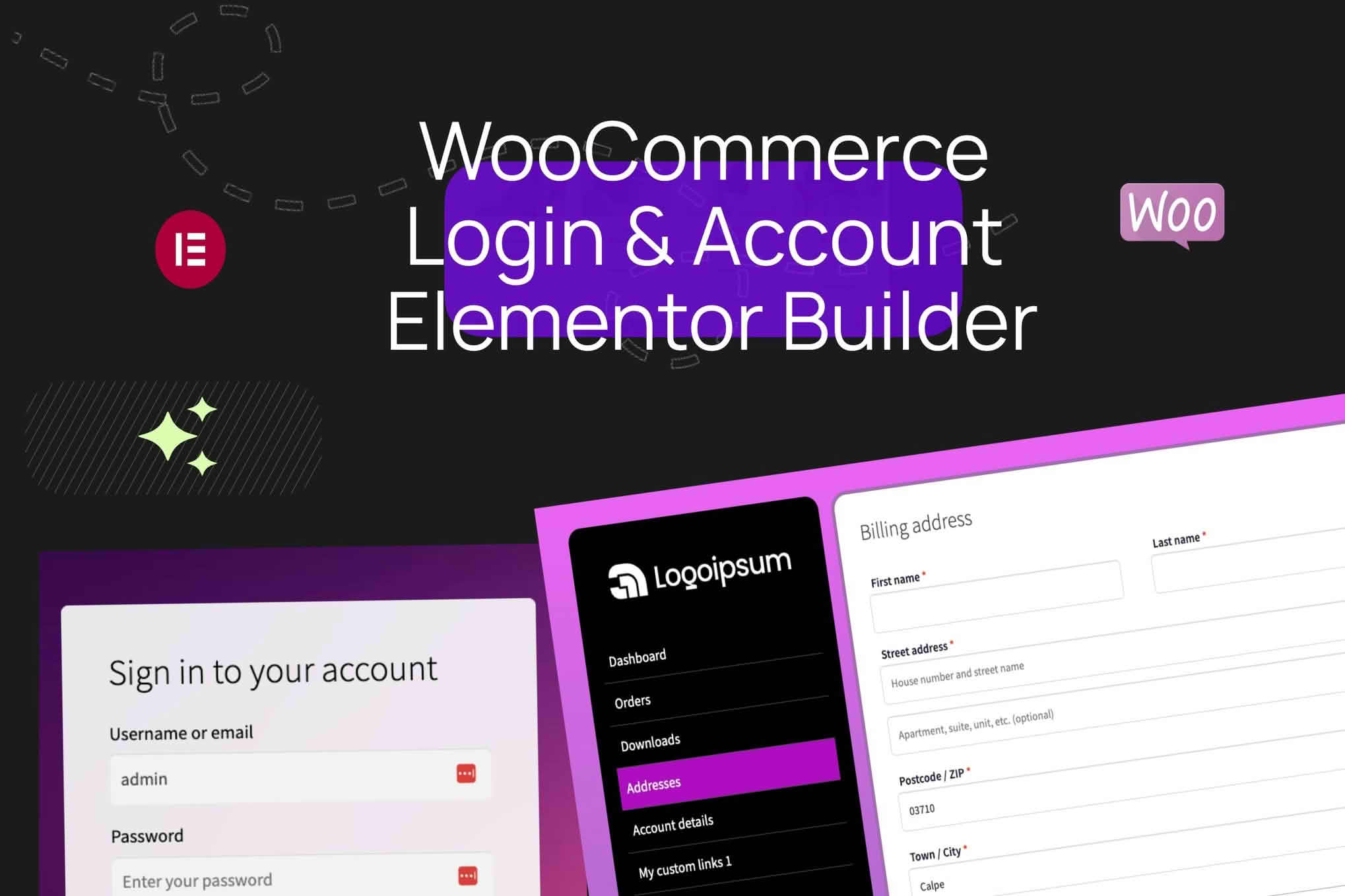
WooCommerce Login & Account Pages for Elementor replaces the default WooCommerce sign-in, registration, password recovery and My Account screens with pages built in Elementor. It is aimed at store owners who already work in Elementor and want the customer account area to match the rest of the site. This entry describes the features set out on the product page, the requirements it lists, and the limits it acknowledges.
The product page says the plugin replaces the default WooCommerce pages with branded versions that line up with the store’s overall design. In practice, the replacement covers the login screen, the registration screen, the lost-password screen and the My Account dashboard. Those are the places where a shopper signs in, creates an account, recovers a forgotten password, or reviews orders and downloads, so customising them can make the account experience feel part of the same site.
The product page describes these layouts as built in Elementor’s visual editor. The work therefore stays inside that editor rather than in theme template files, which is a practical difference for anyone who would otherwise edit code to change an account screen.
The login page can be given branded layouts and background images. The product page also mentions social login buttons and custom form styling. It does not name the social providers the buttons connect to, so check which providers are supported before you promise a particular sign-in option to customers.
The registration screen can be built as a custom form with additional fields and a terms acceptance step. The product page also mentions email verification options, though it does not explain what those options involve. Use a test account to see how the verification step looks and whether it fits the way your store handles new sign-ups.
The product page describes a redesigned My Account dashboard with custom navigation, order displays and download section layouts. A store that sells downloadable products will rely on the downloads layout, so test that screen with a real download before launch. The page does not say whether addresses or account details are included in the redesign, so check those screens on a test site as well.
The password recovery page can be customised with a branded design and with clearer guidance for the customer. The product page also says site owners can control where customers are sent after they log in and after they register. Those redirects can return customers to a product page or to checkout, and the page does not list any other redirect rules.
The product page mentions conditional content display and role-based visibility options. Together these suggest that parts of an account page can be shown to some customers and hidden from others, depending on their role or on conditions you set. The page gives no further detail about how those conditions are configured, so test them with accounts that hold different roles.
The product provides separate Elementor widgets for each WooCommerce account component, so each part of the account area can be placed where you want it on a page. Styling is handled element by element. The product page says that form fields, buttons, links and menus can be styled individually, and that site builders can add custom CSS classes for deeper control. Responsive settings are included with the aim of keeping the layouts usable on mobile devices.
The product requires both WooCommerce and Elementor. The product page states compatibility with the latest versions of WordPress and WooCommerce, but it does not give minimum version numbers for any of the three. It also does not say which edition of Elementor is needed for the widgets. Check your Elementor setup against the widget list in your own installation before you start building.
The product page lists three drawbacks. The first is that the product depends on both WooCommerce and Elementor. The second is that custom designs can fall behind when WooCommerce introduces new account features, so a designer may need to revisit a layout after an update. The third is that a more elaborate design adds to the maintenance work compared with the default pages. Plan time for reviewing the account screens after each WooCommerce release.
Before you change the live account area, build the new pages on a staging copy that uses the same WooCommerce settings and theme as your live store. Create test customers, one for each role if you use role-based visibility, and walk through each path: sign in, register, recover a password, view an order and open a download. Confirm that redirects land where you expect, and check every layout on a phone.
Once the pages are live, repeat the same path after each update to WordPress, WooCommerce or Elementor. A quick run-through catches a broken form or a misplaced section before customers do.
Think about the route a customer takes before you design any single screen. A shopper may arrive at the login page from a checkout prompt, from an order confirmation email, or from a link in a reminder message, and each arrival point should lead somewhere sensible. Map those routes on paper first, then check that every screen offers a clear way forward and a clear way back, so that nobody reaches a dead end.
Consider guests as well. Some customers will not have an account when they start, so the registration screen should explain briefly why an account is useful, without pressing the shopper to create one. Keep the wording short and honest, and let the customer see what they will be able to do once they register.
Consistency helps customers trust the account area. Use the same logo placement, colours, type sizes and button styles on the login, registration and My Account screens as on the rest of the store, so that the pages feel like one site. A custom design that departs sharply from the product pages can make customers wonder whether they have left the store, which is the opposite of what a branded account area is meant to achieve.
Plan the hierarchy of each screen carefully. The main action on the login page should be the most prominent element, secondary links such as password recovery should be visible without competing with it, and the My Account navigation should use labels that match the terms your customers already see elsewhere on the site.
Many customers manage their accounts on a phone, often in short sessions while they are on the move. Make sure every form field is large enough to tap comfortably, that the keyboard does not hide the button a customer needs, and that error messages appear close to the field they describe. Check each screen in portrait and landscape orientation, because a layout that works upright may cramp when the phone is turned.
Long lists of orders or downloads need particular attention on small screens. Test how a customer with many orders scrolls through the list, and confirm that download links remain easy to find when the screen is narrow. Simple adjustments at this stage keep the account area usable for the customers who depend on it most.
Account pages handle personal information and sign-in details, so treat them as a sensitive area of the store. Serve the whole site over HTTPS, keep WordPress, WooCommerce and Elementor up to date, and review who has administrator access. This entry makes no claim about what the product enforces, so decide your password requirements and any additional sign-in safeguards within your wider WooCommerce setup, then check them on a test site.
Explain to customers, in plain language, what information the account stores and how they can change it. A short note near the registration form, linked to your privacy policy, sets expectations before the customer shares any details. If you use the email verification step, describe it clearly so that customers understand why they are being asked to confirm their address.
The product page does not name the social login providers, explain the email verification options, or list the registration fields that are available. It does not address addresses or account details, and it does not provide a complete list of widgets. These gaps matter if your store depends on a specific sign-in method or a particular account section, so confirm those points on a test site before committing to a design.


