

Updates for one year, unlimited sites, auto updates, and regular updates.
$3.99
 BookmarkBookmarked
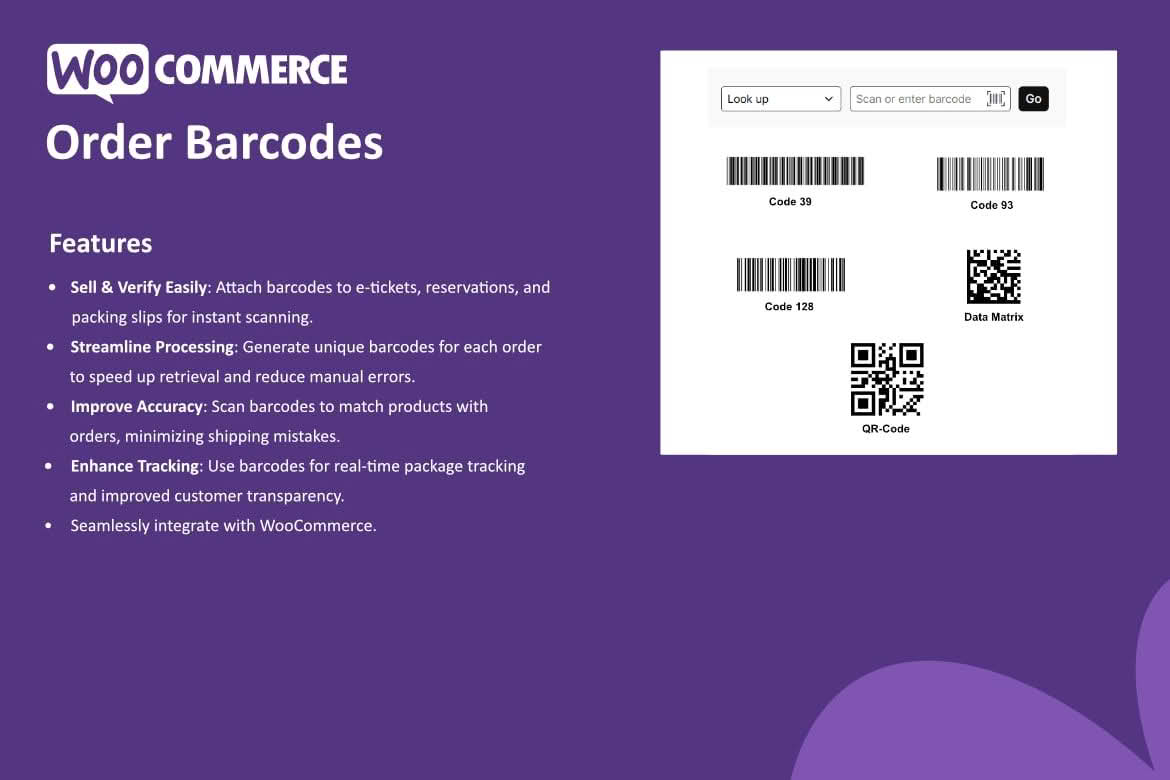
Every WooCommerce order already has a number, but a number is slow to read out at a busy pickup counter and easy to mistype. Order Barcodes for WooCommerce gives each order its own barcode and QR code, ready to scan wherever the order needs checking. The plugin is designed for ticket and event check-in, collection at a pickup point, reservations, and warehouse or fulfillment work. A scan does more than look an order up. On a phone, the scan opens the order directly, and permitted staff can then move that order through your workflow. A counter scanner can feed the same process.
The plugin creates barcodes and QR codes for orders automatically, so there is no extra step for each new purchase. The codes are generated on your own WordPress site rather than through a third-party barcode service, and the generated images are cached so they do not have to be rebuilt every time they are displayed. The PHP GD extension is required for this local image generation, so it needs to be available on your server.
Keeping the codes inside your store means each one stays tied to the order record that WooCommerce already holds. Staff do not need to copy values from one system into another, and customers receive the same code that the team sees on the admin screen. That consistency reduces the chance of errors at handover, when a mismatched number can delay a collection or a check-in.
The code is shown in several places so that the right people can reach it. Order emails display the code, which gives customers something to present at the point of collection or check-in. The WooCommerce admin also displays it, so staff can work from the same record they already use. When the optional integration with WooCommerce PDF Invoices & Packing Slips is in place, the code can appear on supported PDF documents produced through that plugin.
Because the same code appears in each place, it does not matter whether a customer shows an email on a phone or a printed copy at the desk. Either route leads to the same order, which keeps the process simple for everyone involved.
Scanning a QR code with a smartphone or tablet opens a mobile-friendly order page. No dedicated app is needed, because the scan leads to a page in the browser. Once staff have verified the order on that page, they can run the status action you have configured for that step. Only permitted staff can verify an order and run an action, which keeps the process controlled as more people join the team.
A check-in desk at an event could scan a ticket, verify the order and move it to the status used for entry. A collection point could run the completion action once a customer has collected an order from the same device. The steps are the same in both cases, which keeps training simple.
For a fixed station, the plugin includes an Easy Scan Form that works with USB or wireless barcode scanners. A scanner at a counter is often easier to use than a phone, particularly where a queue forms and staff need their hands for other tasks. The form accepts the code from the scanner, so the operator can move straight to the order instead of typing an order number.
Hardware is a matter of preference. A counter station and a phone can work side by side in the same location, and staff can switch between them as the day requires. Whichever route you choose, the order and its status stay the same, so the outcome does not depend on the device used to scan.
The main setting the plugin exposes is the order-status action. You can configure it for check-in, for completion or for a custom workflow, which gives you control over what a scan means in your business. A ticketing operation might use a check-in action at the door, a shop might use completion when a collected order leaves the counter, and a warehouse might add a custom step between picking and dispatch. Each action moves the order to the status you have chosen.
The plugin keeps a Scan Log that records scanning events and status changes. The log can be exported as a CSV file, which makes it straightforward to reconcile a day’s check-ins or collections in a spreadsheet, compare sessions or keep a written record of what happened. A log is especially useful when several people handle the same orders, because it shows the sequence of events rather than only the final status.
Ticketed events are an obvious fit. An order can serve as an e-ticket, and the code gives the door team a fast way to confirm entry and record it. Reservations work in a similar way, with the code used at the host stand to confirm a booking. Pickup orders benefit from the mobile order page, because collection staff can confirm an order without searching through a long list. Warehouses and fulfillment teams can use the codes to move orders from one status to the next as they are handled.
Each of these uses depends on the same few building blocks: a code for each order, a scanning route, a status action and a log. Once you understand those four parts, adapting the plugin to a new setting is mostly a matter of choosing the right status and the right route.
A reliable handover routine starts with a clear order of steps. Decide who scans, which screen or device they use, and what they should look for on the order page before anything changes. Agree on the status that each scan should produce, and make sure every team member knows what to do if a code will not scan, such as a damaged label or glare on a screen. Writing these steps down on a single page of instructions helps new staff learn the process quickly.
Plan for busy periods too. A door team at a sold-out event, or a counter during a holiday rush, will move faster when the scanning route is set up in advance and tested. Keep a spare scanner or a charged phone on hand, and practice the routine before the first busy day so that surprises are rare when it matters most.
The plugin requires WooCommerce 5.0 or later and PHP 8.1 or later. It also needs the PHP GD extension to generate barcode images on your server. The compatibility table covers WooCommerce versions 5.x through 9.x and WordPress versions 4.9.x through 6.9.x, and the plugin is described as optimized for the block editor. Check these figures against your current versions before installing, because server settings differ between hosts.
The plugin’s stated compatibility does not mention High-Performance Order Storage, so if your store uses that option, run a complete test of the scanning and status workflow before going live. Testing with a sample order from each route, phone and counter, gives you confidence that the process behaves as expected under your own configuration.
Does scanning require an app? No. The scan opens a mobile-friendly order page in the browser. Does the plugin need special hardware? A phone or tablet is enough for scanning, while a USB or wireless scanner is an optional choice for a counter. Can you keep a record of scans? Yes, the Scan Log can be exported as CSV. Can you change what a scan does? Yes, through the order-status action configured for each workflow.
A sensible rollout starts with one process, such as ticket check-in or pickup, rather than trying every use at once. Choose the order status that should follow a scan, test the phone route and the counter route with a sample order, and confirm that the emails and PDF documents show the code you expect. Once the first process runs smoothly, add the next one. Teams tend to absorb change more easily when the routine is introduced in small steps.
Order Barcodes for WooCommerce turns each order into something staff can scan, check and act on. It generates barcodes and QR codes locally, shows them in emails, in the admin and on supported PDF documents, and gives phones and counter stations a direct route into the order. Combined with configurable status actions and a Scan Log for records, it helps stores build a dependable link between the physical handover and the digital order.


