

Updates for one year, unlimited sites, auto updates, and regular updates.
$3.99
 BookmarkBookmarked
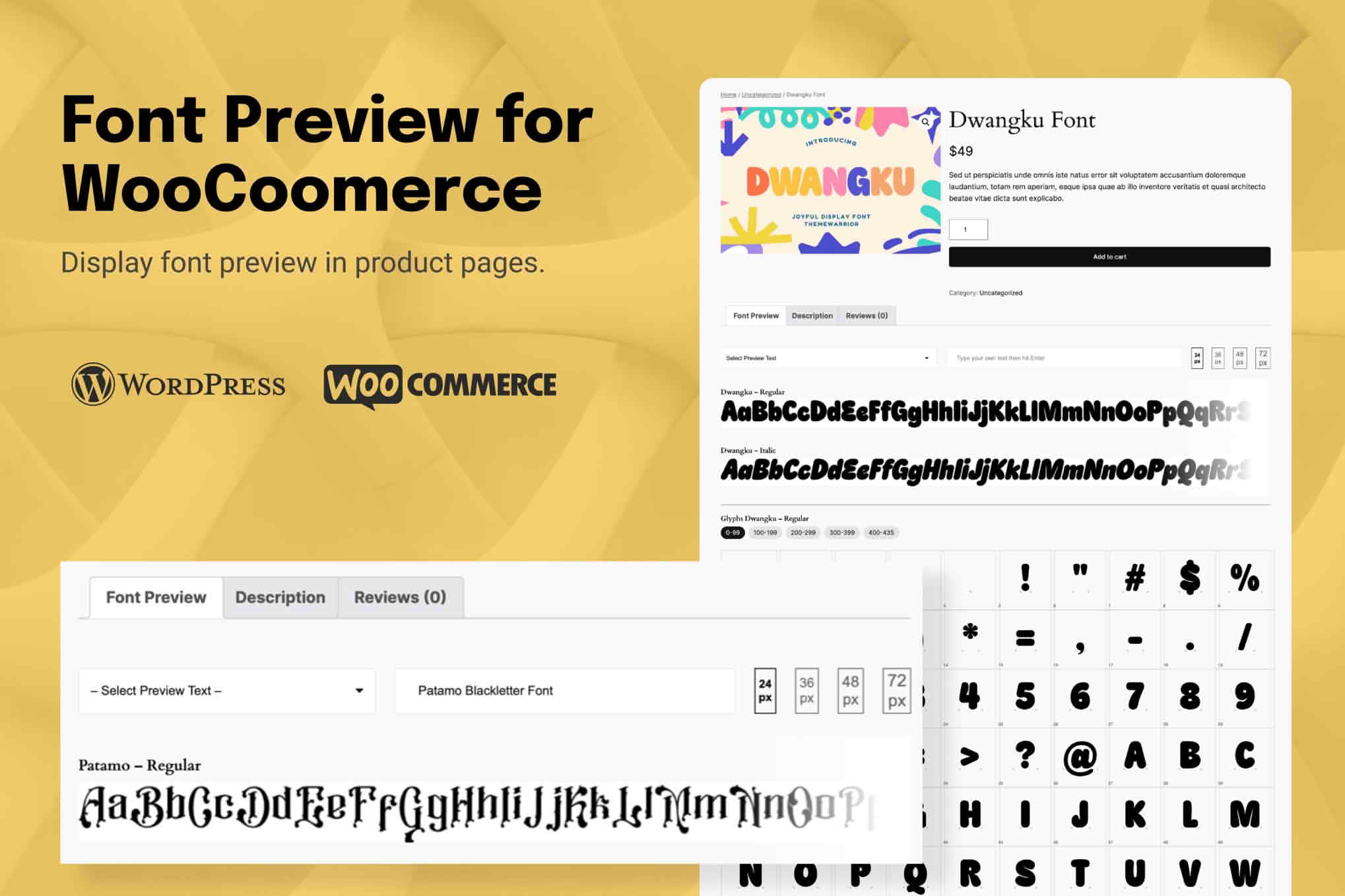
Font Preview Plugin for WooCommerce lets shoppers see personalized text in a range of typefaces before they add a product to the cart. The preview sits on the product page itself. A buyer picks a font, types their own wording into a text field, and sees that wording rendered in the chosen typeface. Stores that sell typefaces or lettering are the natural audience, although the same approach suits any shop where the look of a name or message matters to the buyer.
The plugin shows shoppers how personalized text will look in different fonts, directly on enabled product pages. Each shopper sees their own wording in the selected typeface straight away, which the listing describes as an instant preview. The aim is to let people judge a font using their own content rather than a generic sample line.
Font choice is limited to Google Fonts. The store owner decides which Google Fonts appear in the dropdown, and the plugin loads those fonts securely so that the preview displays accurately. The listing states that custom font uploads are not currently supported and that they are expected in a later release. A store that wants to show its own typefaces will therefore need to wait for that feature or look for a different method.
Store owners can also edit the field names and the placeholder text that shoppers see. That makes it possible to adjust the wording around the preview so that it matches the store’s tone and the product being sold. The listing does not describe any other settings, so the admin screen should be checked on a test site before the feature is switched on for customers.
On a product where the feature has been enabled, the shopper follows a short sequence. The steps below reflect how the listing describes the flow.
The live preview is confined to the product page. The listing says the cart, the checkout, the order emails, and the admin order view all show the chosen font and text, but it does not describe a live preview in any of those places. Shoppers should therefore check their choice on the product page before moving on, because the listing describes the rendered preview only there.
The settings sit under the WooCommerce menu, in a section the listing calls Live Font Preview. From there the owner decides where the feature appears. It can be switched on for the whole site, for selected product categories, or for individual products. That flexibility matters in a shop where only some items suit personalized text. A stationery seller, for example, might enable the preview on name cards and leave the rest of the range unchanged.
The three main setup tasks are listed below.
A curated set of perhaps six or eight typefaces, covering a range of styles such as serif, sans serif, script, and display, is easier for shoppers to browse than a long unfiltered list. Owners who intend to add more fonts later can test each addition on a separate copy of the site before it reaches customers.
The listing states that the shopper’s font and text choices follow them through the cart and checkout. Both the classic checkout and the Blocks-based checkout are supported. The two values are recorded as order item metadata, labeled “Font” and “Custom Text” in the listing, and they appear in the admin order view and in customer emails.
That record gives staff a clear view of what was requested before anything is produced or shipped. Wherever a misspelled name would cause a problem, the order screen and the confirmation email are the checkpoints to watch. Some owners add a short note to their confirmation email reminding buyers to check their text, which is a sensible habit whichever plugin is in use.
The listing also states that the plugin is fully compatible with WooCommerce High-Performance Order Storage (HPOS). Owners who have moved their order tables to that system can confirm the behavior on a test copy before relying on it for live orders.
Shops that sell typefaces, font bundles, or lettering are the most direct match. A buyer deciding between two fonts often wants to see how each one handles their own name or phrase, and the preview gives them that view on the product page where the purchase decision is made. A shop that sells a single font can use the feature to show how that face handles different words and lengths of text.
Businesses that sell personalized goods where the typeface matters can also benefit. Examples include stationery, signs, gifts with a name or date, and printed keepsakes. In each case the appearance of the text is part of what the customer is buying, so being able to preview it before ordering reduces guesswork on both sides.
Stores that need fonts from outside the Google Fonts library are less well served at present, because custom uploads are not supported. Stores that want previews on shop or category pages should look carefully as well, since the listing does not say that the preview appears there.
A preview is a screen rendering of the chosen typeface, so it is not proof of how a finished item will look on paper, fabric, or metal. Stores that produce physical goods should say so in the product copy, and should ask for a proof or a sample before committing to a large run. Presenting the preview as a guide rather than a guarantee sets the right expectations for the buyer.
These limits do not make the plugin unsuitable for every store, but they should be weighed against the store’s needs before installation. A store that depends on its own typefaces, or on previews in listing pages, will need a different solution.
The listing gives a minimum WordPress version of 6.0 and states that the plugin has been tested up to WordPress 6.9.9. It names PHP 7.4 as the minimum PHP version. The author is shown as WPMajestic, and the listing displays version 1.0 of the plugin. A shop running an older WordPress release should confirm that it meets the minimum before installing.
Because the preview appears on the product page, the product page template matters. A store owner should test on a staging copy using a real product, and should check that the font dropdown and text field stay easy to use on narrow screens. The preview should not push the add-to-cart button out of reach on a phone.
Try a range of typefaces with both short and long wording. Decorative faces can be hard to read at small sizes, so it helps to look at the preview on a phone as well as a desktop. Checking several fonts in one sitting shows which ones are clear and which should be left out of the dropdown.
Place a test order through both the classic checkout and the Blocks-based checkout. Then confirm that the font and text appear in the admin order view and in the customer email, since those are the places the listing names for the order record. Keep a backup of the site before installing, and confirm that other extensions still work after activation.


