

Updates for one year, unlimited sites, auto updates, and regular updates.
$3.99
 BookmarkBookmarked
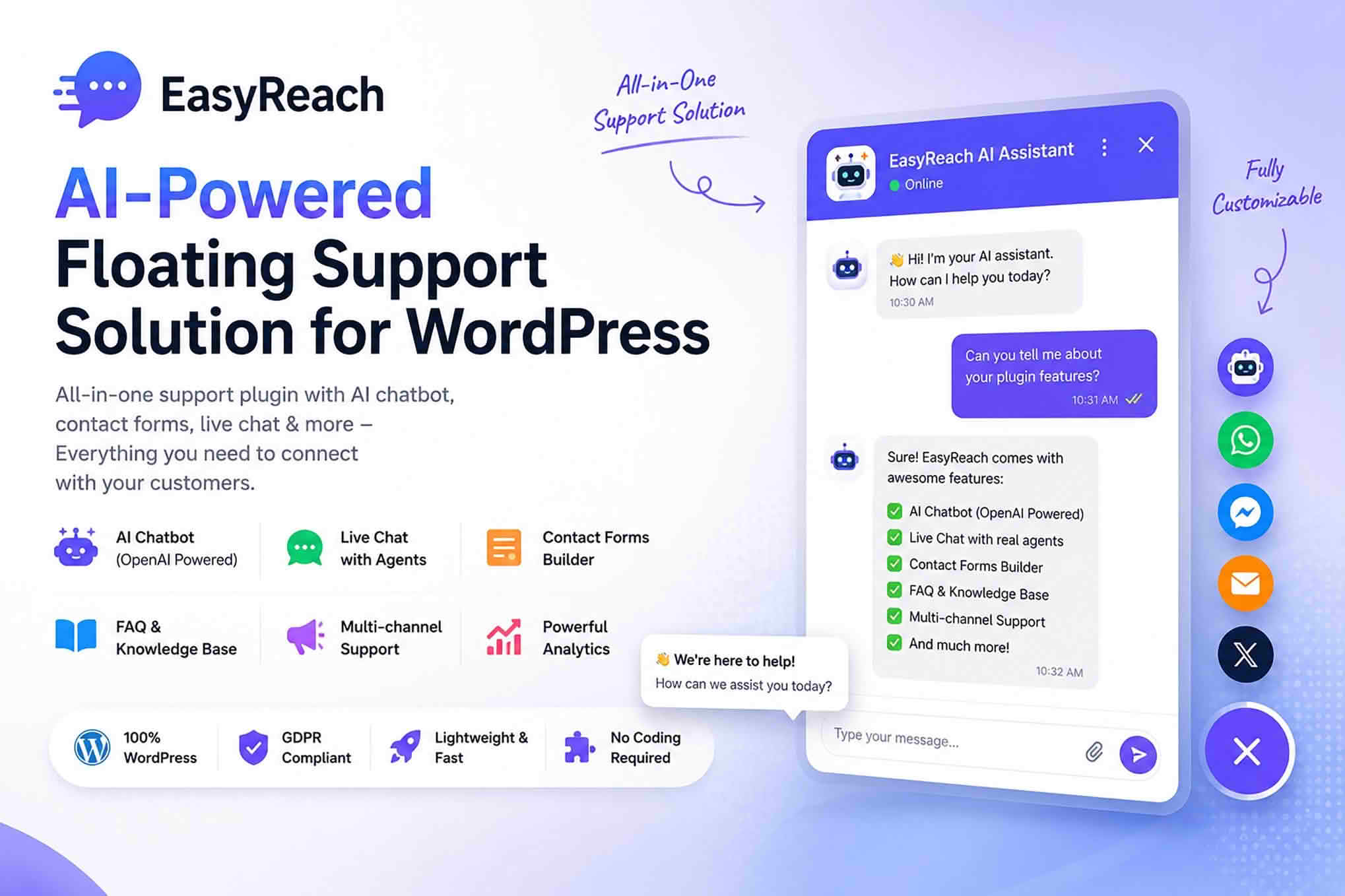
Visitors who hit a question at the wrong moment often leave without asking it. EasyReach puts a floating support popup on your WordPress site, so help stays within reach as people browse. Inside that popup sit an OpenAI-powered assistant that gives quick answers, contact options, and quick links. The aim is to keep people moving toward a decision rather than sending them off to search for information elsewhere.
A floating widget sits above your content and opens when a visitor needs it. It can sit alongside a store, a blog, or a service website. Its presence also signals that real help exists, which can reassure people who are nervous about buying something or about filling in a form.
The chat assistant is powered by OpenAI, and its job is to give visitors quick, direct answers. Many questions are simple, such as opening hours, delivery areas, or where to find a particular page. An assistant that responds immediately saves visitors time and spares your team from repeating the same replies throughout the day.
Test the assistant with realistic questions before you rely on it, including the awkward ones that real visitors tend to ask. Decide in advance when a conversation should be handed to a person, and make that route easy to follow. A helpful assistant knows its limits, and so should the people who run it.
Real-time chat and a notification bar are included, so visitors can reach you while they browse. Live conversation suits questions the assistant cannot resolve, or moments when a visitor simply wants reassurance from a real person. Consider setting expectations about response times in the popup wording, because an open chat that goes unanswered can frustrate people more than no chat at all.
The widget gathers several ways to reach you under one roof. You can create contact forms with the built-in tool, link to your social media channels, and add messaging apps such as WhatsApp, Messenger, and Telegram. Those named apps are examples rather than a complete list, so you can choose the ones that fit your audience. Offering several routes lets visitors use the method they already rely on every day.
Contact channels work best when chosen deliberately. Listing every platform you own may look busy, whereas a short selection of channels that you monitor carefully builds more trust. Make sure each channel you advertise is staffed and that the people responding know how to handle common questions.
EasyReach also offers quick links, which point visitors toward the pages they are most likely to need. Shortlist a few destinations that answer frequent questions, such as a returns page, a booking page, or your contact details, and keep the list short so the popup stays easy to scan.
The plugin can open video popups that support YouTube and Vimeo. A short clip can explain a setup process, demonstrate a feature, or introduce your team more personally than text alone. Keep videos brief and relevant, and place them where a visitor would naturally want a demonstration rather than where they will be distracted from a task.
Customisation covers button styling, wording, motion effects, icons, colour scheme, layouts, and popup placement. Use these options to match the widget to your brand so that it feels like part of the site rather than an add-on. Pick colours with enough contrast for text to read easily, and choose a placement that does not cover important buttons or form fields.
Think carefully about the wording on the button, because it sets expectations before anyone clicks. Short, specific labels usually work better than vague invitations. Test two or three variants and see which one gets the most interaction from your visitors.
EasyReach works with WordPress and WooCommerce. It is designed to suit most current themes, Elementor, and other widely used page builders. A responsive layout for mobile devices is included, and setup needs no coding. Because themes vary, check how the popup looks on your own site rather than relying on a demo alone.
On a phone, a floating popup can take up significant screen space. Test the open state carefully, make sure the close control is easy to reach, and confirm that the popup does not block content that visitors need to read or complete.
Many visitors arrive on a phone and expect support to be a tap away. Keep the popup compact enough that it does not dominate the screen, and make the opening label obvious. Think about how the widget behaves while someone is scrolling or filling in a form, and avoid placing it over checkout or sign-up controls. A support tool that respects the flow of the page tends to feel helpful rather than intrusive.
A support widget works best when visitors know what it can and cannot do. Make it clear that the assistant handles general questions, and that complex or personal matters go to a person. Simple labels such as ask a question or contact us tell people what will happen next. When expectations are set early, visitors are less likely to feel frustrated by an automated answer that does not fit their situation.
The plugin is positioned as GDPR friendly. That is a useful starting point, but it does not replace your own compliance review. Consider what information the chat, the contact forms, and the assistant collect, where it is stored, and how long you keep it. Update your privacy policy so it reflects the tools you actually use, and make sure your team knows how to respond to visitor requests about their data.
Because the assistant depends on an external AI service, ask visitors not to share sensitive personal information in the chat, and treat the assistant as a convenience for general questions rather than a channel for confidential matters. Making that boundary visible in the popup text is a good way to set expectations from the start.
EasyReach suits sites that receive a steady flow of similar questions. Online shops, service businesses, membership sites, and content publishers all tend to field repeated enquiries about delivery, bookings, account access, or how things work. A visible, friendly support entry point can ease that pressure and help visitors feel looked after from their first click. Appointment-based businesses, such as studios or clinics, can use the same approach to answer scheduling questions before a visitor decides to call.
Start with a short list of the questions visitors ask most often. Decide which answers the assistant should give and which should go to a person. Choose the contact channels you will staff, select a small set of quick links, and prepare any videos you want to include. Keep the first version modest, then refine it as you learn which features visitors actually use.
Before launch, test the whole journey on several devices. Open the popup, ask a question, try each contact method, follow each quick link, and check that the video popups play correctly. Fix anything that feels clumsy, because support tools are judged in the moments when people most need reassurance.
Good decisions about a support widget come from evidence rather than guesswork. Use whatever analytics you already run to see how often visitors open the popup, which contact method they choose, and which quick links they follow. Compare those patterns with the questions your inbox receives. If a channel rarely gets used, consider removing it so your attention stays focused on the routes that visitors actually prefer.
Support needs change, so the widget deserves regular attention. Review the questions visitors ask most often each month and compare them with the answers the assistant currently gives. Retire quick links that point to pages you have moved or removed, and update contact details whenever a team member changes role. Video content can also date quickly, so check that each clip still reflects the current process before you leave it in place.


