

Updates for one year, unlimited sites, auto updates, and regular updates.
$3.99
 BookmarkBookmarked
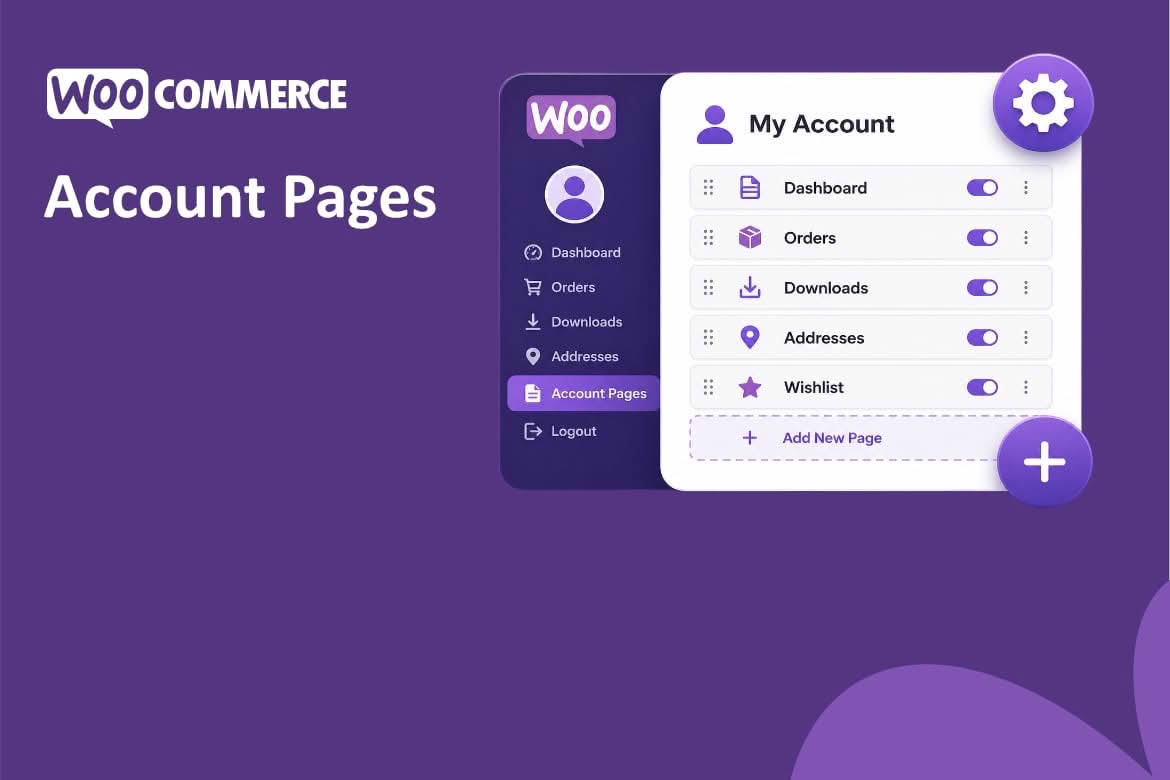
Custom My Account Pages for WooCommerce lets store owners add, reorder and manage their own pages inside the WooCommerce My Account area. Instead of sending customers to scattered landing pages for membership details, support guides or product care advice, you can place that information where signed-in shoppers already go to check orders, reach downloads and update their details. Extra tabs can carry custom content, which turns the account area into a more useful hub for the people who return to it most often.
For most WooCommerce stores, the My Account page is one of the few places where a customer is signed in and focused on their own relationship with the business. Shoppers use it to review past purchases, reach downloadable files, change shipping or billing addresses and manage their login details. On a default installation, the page is a regular WordPress page that outputs WooCommerce’s account tabs and their content, so anything you add to that area becomes part of an experience customers already trust.
The standard set of tabs usually includes Dashboard, Orders, Downloads, Addresses, Payment methods, Account details and Logout. Which of them appear can depend on your store setup, the payment gateways you use and the features you have enabled. Because of that variation, sign in as a test customer and view the page exactly as your shoppers will see it before you add anything.
The plugin concentrates on three jobs: adding pages to the account area, arranging them and keeping them accurate. You can create new pages that appear within My Account, so customers reach them through the same navigation they already use for orders and downloads. Once those pages exist, you can reorder them so the sections customers need most sit near the top. Managing them is an ongoing task, and the ability to revisit each page, update its content and keep the whole collection tidy is what makes the feature practical over the long term.
Extra tabs are the most visible part of the offering. Each tab can hold custom content, so one account area can present a welcome message, a short guide, a set of links, a notice about an upcoming change or instructions that apply only to people who have logged in. Because that material sits behind the account login, it suits information that should not be published openly, such as details that only existing customers need.
A handful of well-chosen tabs usually does more than a long, cluttered list. The examples below are starting points rather than fixed templates, and you can adapt each one to your catalog and your customer base.
Customers who open an account tab usually have a specific job in mind, whether that is tracking a delivery, finding a file or resolving a question. Open each tab with a direct sentence, and place the most-needed information first. Short paragraphs, clear headings and descriptive link text make a noticeable difference on small screens, where many shoppers manage their accounts from a phone.
Avoid repeating the same message across several tabs. If a notice applies to every customer, keep it in one place and link to it from elsewhere. Where a tab mentions products or categories, link to the live shop pages rather than typing out figures, since a typed-out amount can go out of date and cause confusion at checkout.
Before adding anything, sketch the path a customer takes through the account area. Start with the default tabs they use most, such as Orders and Downloads, then decide where your own pages fit. A reliable rule is to place the pages customers visit often near the top, and move reference material further down. If a page serves only a small group, such as wholesale buyers, ask whether it belongs in a broader tab with a clear heading or in a separate page that you link to for those customers alone.
Give each tab a short, plain label. Words such as Membership, Guides or Support are easier to scan than clever names, and they translate more cleanly if you serve customers in more than one language. Keep the number of tabs manageable, because a crowded navigation becomes harder to read on smaller screens and can push important items out of view.
An account area is often used by people who are in a hurry or who are dealing with something important, such as a delivery problem or a billing question. Use headings in a logical order, write link text that makes sense when read out of context, and keep sentences short. Check that text has enough contrast against its background, and do not place essential instructions only inside an image. Navigating the page with a keyboard alone is a quick way to confirm that every link and button can be reached in a sensible order.
Because the My Account area is personal to each customer, caching needs careful setup. Most caching tools let you exclude specific pages from full-page caching, and account pages are usually the first candidates for that exclusion. Confirm that the My Account page and its subpages are excluded, so that one customer never sees another customer’s details. After adding or reordering pages, sign in as a test customer, clear your cache and check each tab again to confirm that it loads as expected.
Test on more than one browser and on a phone. Confirm that links open in the right place, that headings display correctly with your theme and that longer tabs scroll smoothly. If you change themes or update WooCommerce, repeat the check, because account page layouts are one of the places where theme styling and store functionality meet most directly.
A simple sequence works well. Install and activate the plugin, then create the pages you want to offer. Arrange them in the order you want customers to meet them. Add or edit the custom content for each tab, and save your changes. Finally, sign in as a test customer and review every tab from the shopper’s point of view, looking at the navigation first and then at the content inside each tab.
Keep a simple record of the tabs you create, noting each tab’s purpose and the date it was last reviewed. When a product line, policy or membership level changes, you can then find and update every tab that depends on it, instead of hunting through the whole site to discover what needs attention.
Account content goes stale quickly if nobody owns it. Assign one person to review the custom tabs at regular intervals, and retire any tab that no longer matches what you sell. Old content that promises something you no longer offer is one of the fastest ways to generate avoidable support questions, so treat each review as a chance to tidy up as well as to check accuracy.
Custom My Account Pages for WooCommerce is most useful for stores with repeat customers, membership or recurring offers, digital products that customers return to, service businesses that want clients to find their records in one place, and shops that answer the same questions every week. Agencies building stores for clients may also value the ability to adapt the account area for each client without rebuilding the site around it.
It is less suited to businesses that want a fully bespoke customer portal with complex application logic. In those cases, custom development may be the better route. For content that changes often, though, a tab-based approach is usually quicker to maintain, and it keeps day-to-day edits away from the code that runs your store.
Custom My Account Pages for WooCommerce helps you turn a standard account area into a place that serves your customers better. Add pages, arrange them, keep them current as your business changes, and use extra tabs with custom content to present the information customers need once they have logged in.


