

Updates for one year, unlimited sites, auto updates, and regular updates.
$3.99
 BookmarkBookmarked
Lighthouse – Performance & Security Plugin helps you speed up and harden a WordPress site by switching off default features you do not need. Rather than adding yet another layer to a busy site, it works from the opposite direction: it removes the filters, scripts and injected code that WordPress loads by default, then adds security tweaks from one settings screen. It is described as a WordPress performance and security tuning plugin with a large set of options, so it suits owners who want fine control over what their site loads.
WordPress ships with many behaviors that are useful on some sites and unnecessary on others. Lighthouse removes a wide range of default behavior, including filters, actions, injected code, native code and third-party actions. In practice, its settings target a set of well-known extras that add weight to every page or reveal more about the site than the owner intended.
Examples include the emoji and smiley conversion, which can be switched off so that text symbols stay as plain text and unneeded script and style requests drop away. WordPress embeds can be disabled so that other sites cannot embed your posts. The mediaelement.js script can be dropped on pages where no functionality depends on it, and a comment cookies setting stops the browser from storing a commenter’s name, email address and website address.
The head of each page also carries entries that many sites never use, such as the RSD and WLW references, the generator tag, post shortlinks and auto-generated rel tags. Lighthouse can clean these out of the theme head. A separate setting keeps RSS feed links out of the page head, which makes copying or reposting your content harder.
Some options work on the admin side. Zen Mode strips most of the extra notices, panels and filters from the Dashboard, leaving a calmer working space. The Custom Fields panel can be hidden from the post editor, which avoids a sluggish sort on the meta_key field. A thank-you setting can also add a small footer credit for the plugin.
Browser caching keeps pages stored in a visitor’s browser so return visits need fewer downloads. An ETag header option lets browsers check whether a stored file needs refreshing from the server. For sites that route traffic through Cloudflare, a separate option sends caching headers tuned for that network. The version string that WordPress appends to scripts and stylesheets can also be stripped, which helps browsers cache those files more effectively.
Other options change how the browser fetches resources ahead of time. Prerendering begins loading a link’s target page as soon as a visitor hovers over the link, and a stronger setting also downloads that page’s assets early. Custom DNS prefetch and preconnect hints let you name the hosts that should be looked up or connected to in advance, which can shorten the delay before third-party resources arrive.
The WordPress heartbeat is a recurring AJAX call that handles background work, and Lighthouse can slow how often it fires. The plugin also includes minification, lazy loading and optimization presets for people who prefer a starting point rather than building a configuration from scratch. Canonical URL redirection can be turned off as well, which covers the redirect that triggers when a requested page does not exist.
Caching is where many optimization efforts succeed or fail. A page cache can hide the effect of a change you have just made, so after adjusting speed options, clear your caches and test again. If you use a content delivery network, check that the caching headers Lighthouse sends do not duplicate what the network already applies, and confirm the result on a copy of the site before relying on it.
The theme tweaks section suits sites where another tool already handles part of the job. If a third-party comment plugin takes over comments, the comment reply script that WordPress would otherwise load can be removed. If a dedicated lazy-loading plugin is active, WordPress’s built-in lazy loading for images can be switched off to avoid conflicts between the two.
Other tweaks remove stylesheets and features that many sites never use. The Jetpack stylesheet can be removed when no Jetpack feature you use depends on it, and the classic-themes stylesheet introduced with WordPress 6.1 can be removed unless your theme needs it. Application passwords, which let outside services reach a user’s account, can also be turned off.
The block editor section removes theme support features that some themes enable by default. The list covers post format options, the block-based widget editor, responsive embed styling, stock editor styles, built-in block styles, preset block templates, bundled block patterns and WooCommerce theme support. Test each option against your live theme, because a layout may rely on one of these features without making that obvious.
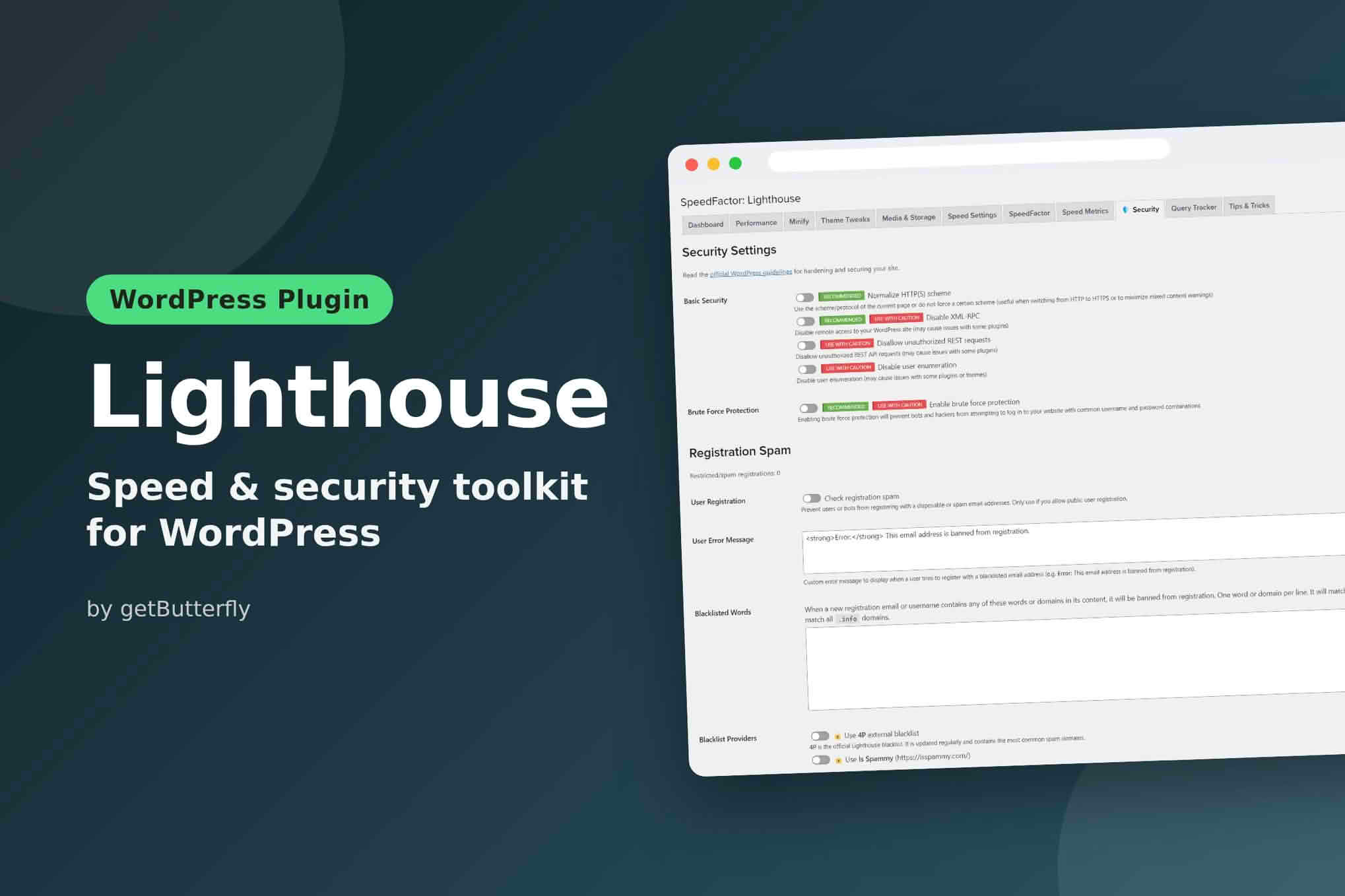
The security side of Lighthouse is deliberately modest. It is designed to keep sites secure without slowing them down, and it advertises a real-time firewall, although its product page does not explain what that firewall blocks. The plugin also aims to keep spam registrations low, so judge its protective claims against the specific settings it lists.
The settings tied to security are straightforward. Disabling HTML in comments stops commenters from inserting tags, which reduces the chance of harmful code entering the discussion. Turning off application passwords closes one route by which outside services could reach user accounts. The blogging and commenting cleanup turns off comments, pingbacks and trackbacks, and deletes existing trackbacks, which suits business sites that have no use for a blog’s discussion features.
Lighthouse tracks speed, page resources, memory, queries and more on a daily basis. Those measurements help you see whether a change made a real difference, which is more informative than a single test run. Record your baseline before switching on new options, then compare the readings afterward so that improvements and regressions are both visible.
Lighthouse labels its options with recommendation badges: recommended, not recommended, use with caution and use if needed. Those labels offer a useful starting point, but they are not a substitute for understanding your own site. Change one group of settings at a time, check your key pages after each change, and keep a backup before you start.
Test the front end while logged out and while logged in, submit a comment, and review any embedded media. If something stops working, reverting the most recent change is usually quicker than rolling back the whole configuration.
A practical first pass starts with the options that address known problems rather than every switch on the screen. Begin with the head clean-up and the emoji and embed settings, which are usually low impact on most sites, then test your home page, a post, a contact form and a checkout page if you run a store. Move on to speed settings such as the heartbeat and resource hints once the basics behave as expected. Keep notes on what you changed and why, so that whoever looks after the site later can understand the reasoning behind each choice.
Lighthouse works in Chrome, Firefox, Edge, Safari and Opera, and it is designed to avoid conflicts with caching plugins, other performance plugins and Cloudflare. Confirm the minimum WordPress and PHP versions with your host before installing, particularly on older servers or unusual hosting setups.
Lighthouse suits site owners who want to reduce the background work WordPress performs on each page and who are comfortable reviewing a long list of options. Agencies that manage several sites may appreciate one place to apply a consistent baseline. Owners who prefer a minimal set of plugins may find the number of options more than they need, so start with the sections that match a problem you can already measure.
WordPress, themes and plugins change over time, and a setting that was harmless last year may interact differently with a newer release. After major updates, repeat your test pass, paying particular attention to theme tweaks that remove theme support features. Review the options each quarter so that the configuration keeps reflecting what your site actually uses rather than what it used to need.
Lighthouse focuses on removing what a site does not need, then tuning the rest. Start with the changes that address a known slowdown or an unnecessary feature, verify each one, and expand from there. That measured approach is the best way to collect the speed and security gains the plugin describes without disturbing the parts of your site that already work well.


