

Updates for one year, unlimited sites, auto updates, and regular updates.
$3.99
 BookmarkBookmarked
Gifts and promotions work best when shoppers understand the offer and the rules behind it. Smart Gift & Promotion for WooCommerce helps store owners set up automatic gifts, pool-based gift offers and offers in which shoppers choose their own reward. Each one is driven by the contents of the cart and its totals. The plugin is built specifically for WooCommerce stores, and campaigns are assembled through its settings rather than through custom code. This overview walks through how the pieces fit together, from the first rule to the final check.
A gift pool is a collection of gifts that a campaign draws from. The plugin supports an unlimited number of pools, so you can keep separate collections for different seasons or product lines. Pools also accommodate grouped promotional gifts, which lets related items sit together under one offer instead of being handled one at a time. The plugin additionally describes limited gift pool campaigns as one of its use cases.
Think of each pool as the answer to one question: which gifts are on the table for this promotion? Keeping a pool clearly named and tightly focused makes the rules easier to read later, especially when a store runs several campaigns at once. Review pools regularly so that the gifts on offer still match the products you want to move.
Each rule specifies the situations in which a promotion applies, the gift experience it uses and how conflicts are handled when several rules match. The plugin places no fixed limit on the number of rules, so a store can run several offers side by side. The rule is the core of the system, because every gift, notice or action depends on a rule that the cart satisfies.
Rules are easiest to manage when each one has a single purpose. A rule for a spend threshold, another for a category and a third for a quantity are simpler to test than one rule that tries to cover all three. Name each rule clearly so it is obvious what it does when you return to the list later.
Conditions appear as rows in the rule editor. Each row has a type, an operator, a value and a remove control, so a condition can be built one line at a time and deleted just as easily. The rows combine using ALL or ANY logic, which determines whether a rule needs every condition to hold or only one of them. Subgroup conditions are also supported, which allows more complex logic when a simple list is not enough.
The plugin names five condition types: cart subtotal, cart total quantity, contains products, contains categories and product quantity. That list is presented as examples, so the editor may offer more types than the ones named here. Check the available options in your own installation before you design a campaign around them, and confirm how each condition counts its items, particularly for subtotals.
When several rules match the same cart, the plugin needs a way to decide between them. Two conflict strategies are named, priority wins and max quantity wins. Rules also carry a priority setting, which gives you a second layer of control over the order in which they are considered. Because the strategy determines which gift a shopper receives, overlapping campaigns should always be tested with sample carts before they go live.
A practical approach is to plan the highest-value offers first, give them the highest priority and then add lower-tier promotions beneath them. Confirm the outcome with a cart that qualifies for several rules at once, since that is the situation where the conflict strategy matters most.
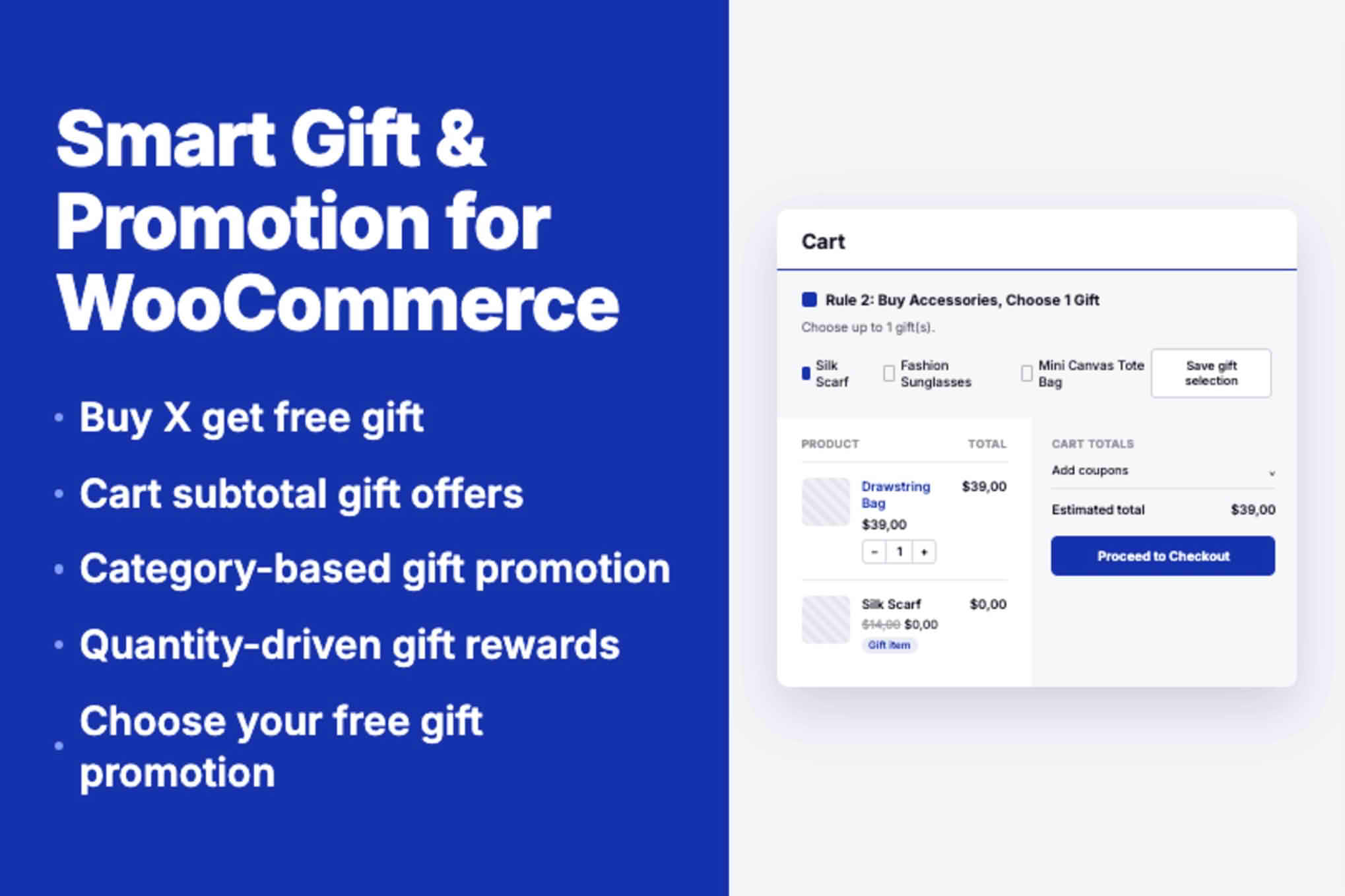
The plugin offers two main ways to deliver a gift. In auto gift mode, the gift applies when the rule conditions are met, with no choice required from the shopper. In customer choice mode, the shopper selects a gift, which suits offers where a buyer should pick between several items. Shopper-selected promotions are among the campaign types the plugin describes, so this mode is designed for that style of offer.
Choose the mode that fits the reward you have in mind. Automatic gifts work well for a simple thank-you on a qualifying order. Shopper-selected rewards invite the buyer to take part in the offer, which can feel more personal. Whichever you choose, make the message in the cart clear enough that the shopper understands what is on offer.
The plugin can show a notice message when a rule matches. Notices let shoppers know that an offer has been unlocked, so the benefit is visible rather than hidden. Cart notices are one of the listed use cases, which makes them a natural companion to any gift rule. Write each notice in plain language and say exactly what the shopper receives, so the message is helpful rather than vague.
The plugin provides a dedicated settings page, and the admin includes an AJAX search for WooCommerce products and product categories. As you type a product or category name, matching results appear for you to choose. That is useful in stores with large catalogs, where scrolling through long lists would slow setup. Because the work happens in the admin interface, you do not need to edit theme files or write custom functions to launch a campaign.
Spend a few minutes exploring the settings page before you create live rules, and note what each control does. A short test campaign on a staging copy of your site is a good way to learn the layout without affecting real customers.
Several common promotions match the use cases the plugin describes. A buy-X-get-a-gift offer rewards a shopper who adds a set quantity of a product. A subtotal-based offer provides a gift once the cart reaches a chosen value. A category-linked gift ties the reward to purchases from one part of the catalog. Quantity-based rewards respond to the number of items in the cart, and shopper-selected promotions let customers pick their own reward.
Pairing an idea with a condition type makes planning easier. A subtotal-based offer lines up with the cart subtotal condition, a category-linked gift lines up with the contains categories condition, and a quantity-based reward lines up with the product quantity or cart total quantity condition. Mapping each idea to a condition in advance reduces surprises when you build the rule.
Before a campaign goes live, write down the rule, the gift pool it draws from and the mode the shopper will see. Then create three test carts: one that just meets the threshold, one that falls just short and one that comfortably exceeds it. Check what each cart receives and whether the notice appears as intended. Review the conflict strategy against your other active rules, because an overlapping offer can change the outcome for a particular cart.
Finally, view the campaign on a phone-sized screen and walk through the path a shopper would take. Small details such as wording and the order of choices become clearer on a narrow display. Only then should you open the offer to customers, and it is wise to watch the first few orders for anything unexpected.
The plugin is built specifically for WooCommerce stores and uses a file structure that the vendor describes as developer-friendly. It is translation-ready, which means the text shown to shoppers can be translated for stores that serve more than one language. Developers who want to extend the plugin can build on that structure, although detailed developer hooks are not described.
Supported WooCommerce, WordPress and PHP versions are not stated, and it is unclear whether block checkout or High-Performance Order Storage is supported. Verify those points on your own store before launch, so you know the campaigns will behave as expected during checkout.
To see how a promotion performs, follow the orders it touches in your normal WooCommerce reports. Note the campaign name and its dates in your own records as well, so you can compare one season with the next and decide which offers to repeat.
Smart Gift & Promotion for WooCommerce gives store owners a rule-driven way to run gift pools, automatic gifts, shopper-selected rewards and cart notices. Unlimited pools and rules, condition groups with ALL or ANY logic and two conflict strategies cover a wide range of offers. Plan each campaign around clear rules and the shopper’s experience, test the overlaps and review the result before opening the offer to everyone.


