

Updates for one year, unlimited sites, auto updates, and regular updates.
$3.99
 BookmarkBookmarked
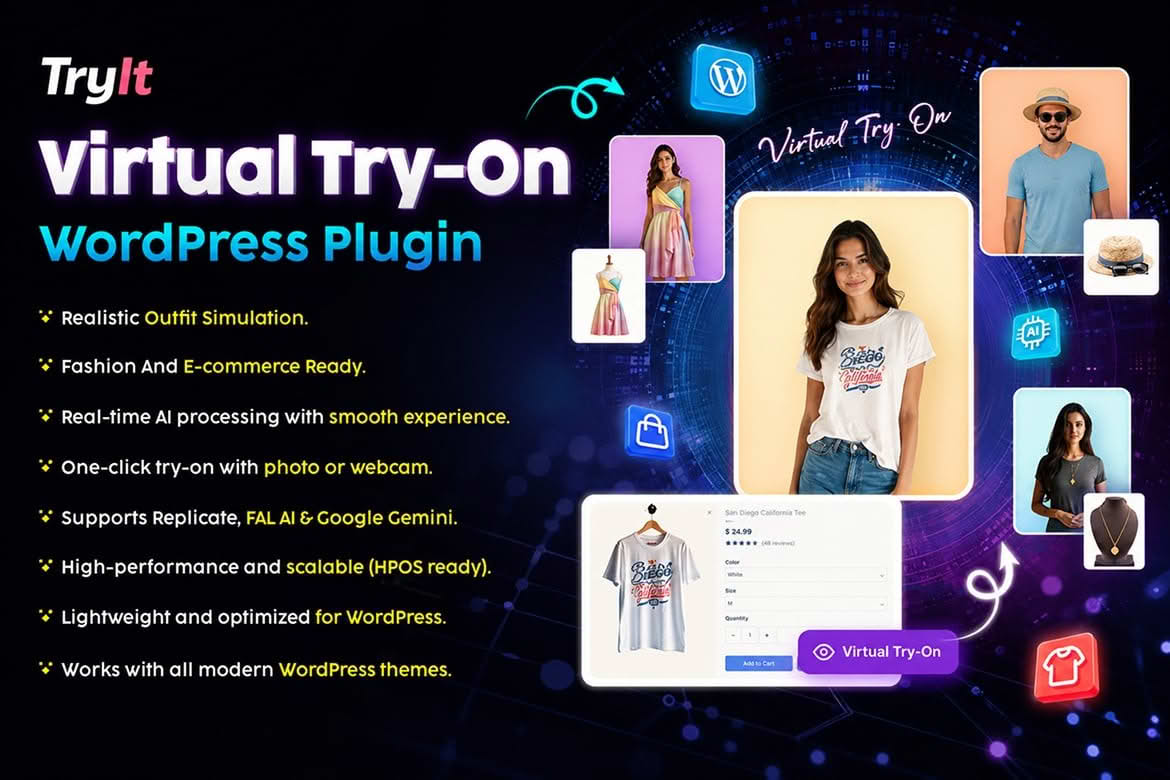
TRYIT: Virtual Try-On for WooCommerce is a WordPress plugin that adds an AI-powered try-on button to WooCommerce product pages. Shoppers can upload a photograph or capture one with their device camera, and the plugin uses the product’s catalogue image to generate a try-on result. The listing targets fashion apparel, eyewear, jewellery and accessories. This entry sets out the features the listing describes, the requirements it lists, and the points it leaves open.
According to the listing, the plugin brings AI virtual try-on to WooCommerce stores. A one-click Try On button appears on product pages, and when a shopper selects it, the plugin produces a try-on result. The listing says this lets shoppers see products on themselves in real time. Results can be downloaded and shared, so a shopper can keep a copy or send it to someone else.
The listing also says the plugin automatically uses the product images already in the catalogue to generate try-on results. For the basic workflow, a store owner therefore does not need to prepare a separate image for each product. The listing does not say how the quality of the output depends on the source image, so test the feature with your own product photography before relying on it.
A shopper has two ways to supply a photograph: upload an image from the device or capture one with the device camera. The listing states that the feature is fully responsive across mobile, tablet and desktop devices. It does not give accepted file types, file size limits or photo guidelines, so store owners should try a range of photographs before launch.
The vendor describes the output as high-quality and realistic, and it calls the rendering fast and lightweight. These are the vendor’s own claims, and the listing offers no test results or benchmarks to support them. Treat them as statements of intent, and check the speed of your own product pages once the button is in place.
The plugin includes an admin panel for managing API keys and settings. The listing names three AI services that the panel connects to: Replicate, FAL AI and Google Gemini. It does not say whether all three are needed or whether one is enough, and it does not explain what accounts each service requires. Decide which services you will use before installation, and check their terms, because the listing says the plugin relies on these third-party services to produce results.
The vendor says that the button, layout and other interface elements can be customised, and that setup requires no coding. Even so, review how the button appears on the product pages of the theme you use before going live, so that it fits the design and does not crowd the add-to-cart controls.
The listing names fashion apparel, eyewear, jewellery and accessories as the categories it is built for. A store that sells clothing or eyewear is the most obvious candidate for a try-on button. The vendor does not mention other categories, so stores selling different goods should test the feature before relying on it.
The product is written for WooCommerce, and the listing does not mention other e-commerce platforms. A store that runs on another platform would need a different solution. The listing also includes the phrase virtual fitting room among its keywords, which suggests the intended use, though the body text does not describe it.
Because shoppers upload personal photographs, a store should think carefully about how those images are handled. The listing says the plugin provides secure handling of user-uploaded images, but the material reviewed for this entry does not explain how long uploaded images are kept. Review your privacy policy before launch so that it describes the photo upload and the use of third-party AI services. Tell shoppers what happens to their images, and give them a clear way to avoid the feature if they prefer not to use it.
These steps are general good practice for any feature that handles customer photographs. They are not features the listing confirms, but they reduce the risk that a shopper is surprised by how an image is used.
Install the plugin on a staging copy of the store that matches the live site’s WooCommerce version, theme and settings. Try the button on several products, using both a file upload and a camera capture. Check that results download and share correctly, and look at how the layout appears on a phone.
Also test the failure path. The material reviewed for this entry does not describe what a shopper sees if an AI service is slow or unavailable, so enter an invalid key in the settings and see what a shopper would experience. That check tells you whether the message is clear enough to keep the shopper on the page.
The listing does not set out photograph guidelines, but clear product images are useful whatever tool uses them. Use a consistent background, even lighting and a sharp focus, and avoid heavy filters that change the colours of the item. Where a product comes in several colours, check that the image shown on the product page matches the colour the customer selects, because a mismatch undermines trust in whatever the try-on produces.
Review a sample of your catalogue before launch and note which products look best. Products with a plain background and a clearly visible item are generally easier to review than busy scenes, so those are the strongest candidates for a first rollout across the store. Revisit the list as new products arrive.
Tell shoppers that the try-on result is generated by software and may not match the fit, drape or proportions of the item exactly. A short line near the button, or a note beside the result, sets expectations and reduces disappointment when a preview differs from reality. Keep the wording honest, and avoid implying that the preview replaces trying the item on in person.
Consider how the feature sits alongside your size guides, product descriptions and returns policy. Shoppers who use the try-on should find the same sizing information they would find anywhere else on the product page, so that the preview supports the decision rather than replacing the product information.
The listing states that the feature lets stores increase conversions and reduce return rates, but it gives no supporting data. A store that adopts the feature should measure those outcomes itself. Record conversion rates and return rates for the affected products over a period before the button goes live, then compare them with a comparable period afterwards, so that any change rests on your own figures rather than the vendor’s claim.
Keep the comparison fair. Seasonal changes, marketing campaigns and new product launches can all shift the numbers, so note any such events alongside the data. A short written record makes the results easier to explain to colleagues and easier to repeat later.
Each try-on request involves uploaded images and calls to external services, so the feature adds work that the rest of the product page does not. Check page speed before and after installation, using the same test pages and devices, and watch how the button behaves on a slow mobile connection. The listing describes the rendering as fast and lightweight, but that is a vendor claim, so your own measurements are the figures that matter.
If the page slows noticeably, look first at the image sizes on the product page and at any caching or optimisation tools already running on the site. Small changes to the surrounding page can have a larger effect than the feature itself, so review the whole page rather than the button alone.
The listing gives WordPress 5.7.x to 6.9.x and PHP 8.0.x to 8.3.x as the supported ranges, with a generic PHP 8.x entry as well. It describes the plugin as seamlessly compatible with WooCommerce but does not name a WooCommerce version. Browser support is listed for Chrome, Edge, Firefox, Safari and Opera. Check these ranges against your own server before installing, and confirm the WooCommerce version you run. The listing says the package includes PHP and JavaScript files.
The listing links to a live demo and to online documentation, which are the best places to confirm details that this entry cannot cover. Beyond the points already noted, the material reviewed for this entry does not describe accepted photograph guidelines, whether the try-on works well for products outside the listed categories, or how usage of the connected AI services is managed. Confirm those points on a test store before you plan a rollout across the catalogue.


